Why IPTV Support After Activation Needs Clear Details
IPTV support after activation is most useful when the request is specific. A message like “it does not work” is too general because the issue can come from the app, device, login details, server URL, playlist loading, internet connection, or account status.
After activation, support needs to know what was done, where the error appears, and which setup method was used. Clear information helps separate a login issue from a playlist issue, device change, wrong app, or inactive account.
For the full activation process, the IPTV activation guide explains how activation codes, login details, server URLs, apps, devices, and support steps work together.
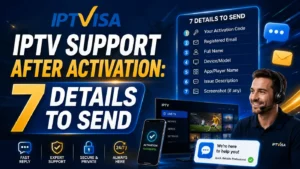
Main rule: when asking for IPTV support after activation, send device type, app name, setup method, error screenshot, account status, and what you already tried.
Detail 1: Device Type
The first detail for IPTV support after activation is the device type. Support needs to know whether the issue happens on Smart TV, Firestick, Android TV, iPhone, Android phone, tablet, TV box, Windows, or another device.
Different devices use different apps and setup screens. A solution for Smart TV may not be the same as a solution for iPhone or Firestick.
If the problem started after switching devices, the IPTV device change guide explains what to check before moving access from one device to another.
Detail 2: IPTV Player App Name
The second detail for IPTV support after activation is the exact app name. Do not only say “the IPTV app.” Write the full name of the player app installed on the device.
Some apps use username, password, and server URL. Others use M3U link, portal URL, activation code, or MAC-style setup. The app name helps support understand which login screen you are using.
Device typeExample: Samsung TV, Firestick, Android TV, iPhone, or TV box.
App nameWrite the exact player app name, not only “IPTV app.”
Setup methodSay whether you used login details, M3U link, activation code, or server URL.
Error proofSend screenshot or exact error text when possible.
Detail 3: Setup Method Used
IPTV support after activation also needs the setup method. Tell support if you used username and password, M3U link, activation code, server URL, or another method inside the app.
This matters because a playlist loading problem is different from a login details problem. If you used the wrong field, support can guide you to the correct setup screen.
If your issue is related to an empty list or loading screen after setup, the IPTV playlist not loading after activation guide explains the main checks before sending a support request.
Detail 4: Error Screenshot or Exact Message
A screenshot is one of the most helpful parts of IPTV support after activation. It shows whether the app says login failed, server error, playlist not loading, invalid details, connection failed, or another message.
If you cannot send a screenshot, write the exact message shown on screen. Do not change the wording, because small details can help identify the issue.
Take a screenshotCapture the error screen, loading screen, or login message.
Do not hide the app nameThe app name helps support understand the setup method.
Explain when it happensSay if the error appears before login, after login, or when loading the playlist.
Detail 5: Account Status
Another important part of IPTV support after activation is account status. Tell support if the subscription is new, renewed, expired, recently changed, or already working on another device.
If the account is new, mention when you ordered. If it is renewed, mention whether it worked before renewal. If you changed device, mention the old and new device clearly.
The IPTV subscription guide gives a wider overview of subscription choices, access details, duration, and setup expectations.
Detail 6: What You Already Tried
Good IPTV support after activation messages include what the user already tested. This avoids repeated instructions and helps support move faster.
For example, mention if you restarted the app, refreshed the playlist, checked the server URL, tried WiFi and mobile data, restarted the router, or re-entered the login details.
A trusted IPTV subscription service should give clear setup guidance and help users understand what information to send when activation does not work correctly.
Detail 7: Clear Contact Message
The final detail for IPTV support after activation is a clear message format. Short, organized messages are easier to understand than long messages with missing details.
Write the issue in one message with all important information. Add screenshots if available. Avoid sending only “not working” because support will need to ask more questions.
Copy this simple support message format:
Hello, I need help after activation.Device:
App name:
Setup method: login details / M3U link / activation code / server URL
Issue:
Error message or screenshot:
Account status: new / renewed / device changed
What I tried: app restart / device restart / details checked / internet checkedPlease check and guide me.
Common Mistakes When Asking Support
Most IPTV support after activation delays happen because the message is missing key details. Review these mistakes before sending your request.
- Sending only “it does not work” without device or app name.
- Not mentioning whether setup uses login details, M3U link, or activation code.
- Forgetting to send a screenshot of the error message.
- Not saying if the subscription is new or renewed.
- Not explaining if the account was used on another device.
- Sending several short messages instead of one clear request.
- Changing apps before support checks the first setup.
- Deleting setup details before the problem is solved.
In general, technical support works better when the user provides enough information for diagnosis. The same applies to IPTV support after activation.
Quick Support Request Checklist
Before finishing this IPTV support after activation guide, use this short checklist.
- Write your device type.
- Write the exact IPTV player app name.
- Explain the setup method used.
- Send screenshot or exact error text.
- Say if the account is new, renewed, or moved to another device.
- Explain what you already tried.
- Keep your login details saved safely.
- Send one clear message instead of many incomplete messages.
FAQ About IPTV Support After Activation
What should I send for IPTV support after activation?
For IPTV support after activation, send device type, app name, setup method, screenshot or exact error message, account status, and what you already tried.
Why is a screenshot important?
A screenshot shows the exact error, app screen, and issue stage. This helps support understand whether the problem is login, playlist loading, server URL, or device setup.
Should I change apps before contacting support?
Not always. First send the current app name, setup method, and error screenshot. Support can confirm whether the app is suitable or if another setup method is better.
What if I changed device after activation?
Mention the old device and new device clearly. Some device changes may need account reset or confirmation before the new setup works.
Can support help with playlist not loading?
Yes, but support needs to know the app name, device type, setup method, screenshot, and whether the account is new, renewed, or already used before.
Final Thoughts
IPTV support after activation is faster when the request includes the right details from the beginning. Device type, app name, setup method, screenshot, account status, and tested steps all matter.
Instead of sending only “not working,” write one clear message that explains what happened, where it happened, and what you already tried.
This guide should help users ask for IPTV support after activation more clearly and get better help for login errors, playlist loading issues, device change, app setup, and account checks.