What This IPTV Activation Guide Covers
An IPTV activation guide should make setup easier for users who already have subscription details but are not sure how to enter them into an app. Activation can involve a code, username, password, server URL, playlist link, device pairing, or support confirmation.
The exact process depends on the provider, app, and device. A Smart TV setup may be different from Firestick, Android TV, iPhone, or TV box setup. That is why this IPTV activation guide focuses on the full login and setup process, not only one app screen.
If you are still choosing a plan before activation, the IPTV subscription guide explains how to compare plans, activation methods, device support, and long-term value before ordering.
Main setup rule: do not enter random details into random apps. Confirm the app, device, activation method, and account status before starting.
IPTV Activation Code: What It Means
An IPTV activation code is usually used to connect an app, device, or account to the subscription details. Some apps ask for a code, while others use username, password, server URL, or a playlist link instead.
A good IPTV activation guide should explain that the activation code is not always the same thing as a subscription plan. The code may be linked to the app, the account, or the device setup process.
The IPTV activation code article explains how activation codes work, what to check before setup, and why users should avoid entering incomplete or wrong codes.
Login Details: Username, Password, and Server URL
Many IPTV setups use login details instead of a simple activation code. These details often include a username, password, and server URL. If one detail is wrong, the app may reject the login.
The IPTV login details guide explains the role of each field and how users should copy the details carefully before entering them into an app.
UsernameIdentifies the account. It should be typed exactly as received.
PasswordConfirms access. Extra spaces or missing characters can cause login failure.
Server URLConnects the app to the correct server. The full format matters.
App fieldThe details must be entered into the correct fields inside the IPTV player.
When Username and Password Do Not Work
One of the most common activation problems is incorrect login. The account may be active, but the app does not open because the username, password, or server URL was entered incorrectly.
Users should check for extra spaces, copied symbols, wrong uppercase letters, expired accounts, app errors, or internet problems before assuming the subscription is not working.
The IPTV username and password not working guide explains the main reasons login details fail and what to check first.
Why the IPTV Server URL Matters
The server URL is a key part of many IPTV login methods. It tells the app where to connect. If the server URL is incomplete, mistyped, or pasted into the wrong field, activation may fail.
A clear IPTV activation guide should always remind users to copy the full server URL exactly as received. Do not remove parts of the link, change symbols, or add spaces.
The IPTV server URL article explains what the server URL means, where to enter it, and what to check if the app cannot connect.
IPTV Account Setup After Ordering
After ordering, users usually receive activation details or setup instructions. The next step is to match those details with the right app and device. This is where many beginners get confused.
An IPTV account setup should be done calmly. Users should confirm the device, install a compatible player, enter the correct login method, and restart the app if the account does not load immediately.
The IPTV account setup guide explains what to do after purchase and how to prepare the first activation without mixing apps or details.
Confirm the deviceKnow whether you are using Smart TV, Firestick, Android TV, iPhone, TV box, or another screen.
Install a compatible appUse an app that supports your activation method, such as login details or playlist link.
Enter the detailsCopy the activation code, login details, server URL, or playlist link carefully.
Restart and refreshRestart the app or device if the account does not load immediately after setup.
Device Activation: Smart TV, Firestick, Android TV, and iPhone
Device activation is a major part of this IPTV activation guide. Each device can have different app options, settings, and login screens.
Smart TV users should check app availability before activation. Firestick users may need a different installation process. Android TV users often have more app flexibility. iPhone users should choose apps that support the received activation method.
Xtream Codes and M3U Link During Activation
Some users activate through Xtream Codes, while others use an M3U link. Both methods can work, but the app must support the method you receive.
Xtream Codes usually use username, password, and server URL. M3U setup usually uses one playlist URL. If the method and app do not match, the user may think activation failed even if the account is active.
The IPTV subscription with Xtream Codes guide explains account-style login, while the IPTV subscription with M3U link guide explains playlist URL setup.
Playlist Not Loading After Activation
Sometimes activation appears successful, but the playlist does not load. This can happen because of app cache, expired account, incorrect playlist link, weak internet, app compatibility, or server URL mistakes.
Before reinstalling the app, users should restart the app, refresh the playlist, check account status, and confirm the activation details.
The IPTV playlist not loading after activation article explains what to check when the app opens but the content list does not appear.
IPTV Device Change After Activation
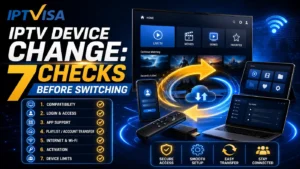
Changing devices after activation should be done carefully. Some accounts may be linked to one device, one app, or one active connection. Moving the same details to another device without checking rules can create errors.
If you want to move from Smart TV to Firestick, or from Android TV to another box, ask support if the device needs a reset or confirmation.
The IPTV device change guide explains what to check before switching screens or reusing details on another device.
Support After Activation
Support is important after activation because issues can appear later. A user may need help with login errors, playlist refresh, app updates, renewal, device changes, or account status.
When asking for help, users should send clear information. This makes troubleshooting faster and avoids repeated questions.
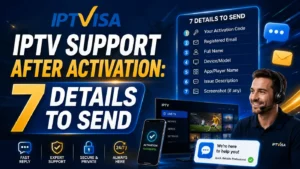
The IPTV support after activation guide explains what details to send, such as device type, app name, screenshot, login method, and issue description.
- Send your device type and app name.
- Explain whether you use code, login details, or M3U link.
- Share a screenshot of the error if possible.
- Confirm whether the subscription is new or renewed.
- Tell support if you changed devices recently.
- Restart the app before reporting a loading issue.
Google TV and Connected Device Help
Some users activate IPTV on connected devices such as Google TV or Android TV. In that case, understanding app updates, device settings, and installation basics can help with setup.
You can visit Google TV Help for general information about device usage, app management, and settings.
This external source does not replace IPTV provider support, but it can help users understand the device side of activation.
This IPTV activation guide is designed to connect all major setup topics in one place: activation code, login details, server URL, devices, playlist loading, device change, and support after activation.
Complete Activation Topic Map
Use this topic map to go deeper into each part of the activation and login process.
Quick Checklist Before Activation
Before finishing this IPTV activation guide, use this short checklist to avoid the most common setup problems.
- Confirm the subscription is active.
- Use the app recommended for your device.
- Check whether you need a code, login details, or playlist link.
- Copy all details exactly as received.
- Do not add extra spaces to usernames, passwords, URLs, or links.
- Restart the app after activation.
- Check internet connection before blaming the account.
- Contact support with device, app, screenshot, and issue details.
FAQ About IPTV Activation Guide
What is an IPTV activation guide?
An IPTV activation guide explains how users can activate IPTV access using a code, login details, server URL, playlist link, compatible app, and supported device.
Why is my IPTV activation code not working?
The code may be incomplete, expired, entered in the wrong app, linked to another device, or affected by an account status issue. Check the app and contact support if needed.
What details do I need for IPTV login?
Many setups need a username, password, and server URL. Other setups may use an M3U playlist link or activation code instead.
Why does the playlist not load after activation?
The issue may come from app cache, wrong details, expired subscription, weak internet, device settings, or an unsupported app setup method.
Should I contact support before changing devices?
Yes. Device change rules can vary. Support can confirm whether the account needs a reset or whether the same details can be used on another device.
Final Thoughts
This IPTV activation guide shows that setup is easier when users understand the difference between activation code, login details, server URL, M3U link, device compatibility, and support.
Before activation, confirm your device, choose a compatible app, copy the correct details, restart the app after setup, and contact support with clear information if something does not work.
A strong IPTV activation guide should help users avoid confusion, activate correctly, and manage their setup with more confidence across different devices and apps.